

Multiple vaults
On this page
One wallet can own several vaults. Each is a separate vault contract with its own positions, its own LISTA allocation and its own holder boost, so each also gets its own boost caps. Your first vault is your main vault; the ones you add after it are extra vaults.
Why add a vault#
Lista boosts only a limited dollar amount of positions per holder: currently $500 per side at Tier 1 and $1,000 at Tier 2. Each vault is its own holder, so every vault you add brings another Tier-1 allocation and another set of caps. Value above a cap still earns the base rate in full; it just isn’t boosted.
- One vault holding $1,500
- $500 boosted (33%)
- Three vaults holding $500 each
- $1,500 boosted (100%)
- Boosted: three vaults vs one
- $1,500 vs $500
Splitting only pays off for the part of your positions above one vault’s cap, and each vault costs one creation transaction. Below the cap, one vault is all you need. See Boost caps for how a cap is shared across positions.
How many you can have#
- Currently up to 3 vaults per wallet, your main vault included. Governance sets this default.
- Governance can give a specific wallet its own limit, higher or lower than the default.
- A limit is checked only when you create a vault. Lowering it never takes away a vault you already have.
- The vault menu shows where you stand: Add vault (2/3) means you hold 2 of your 3; the entry is greyed out once you reach the limit.
Adding a vault#
- Open the Vault menu in the header, or the vault menu on the Dashboard’s My Vault card.
- Click Add vault. The app opens the Dashboard and starts the creation for you.
- Confirm the transaction in your wallet. There is nothing to approve.
- Pick the new vault in the Vault menu to start using it; the app stays on the vault you had selected.
Adding a vault needs:
- a main vault already: your first vault always comes from the Dashboard’s setup guide (see Quick start);
- fewer vaults than your limit;
- the protocol not paused;
- none of your vaults locked by governance. A lock on any one of them blocks adding until all are unlocked, so a frozen account can’t route around the freeze with a fresh vault.
What the new vault gets#
- The pool has stock: you receive the oldest pool vault, exactly as for a first vault. Its LISTA is already in place and its 7-day ramp is already under way.
- The pool is empty: a fresh vault is created and funded in the same transaction. Its boost ramps over about 7 days.
- Either way it starts with 10,000 LISTA (Tier 1) and no positions. If the treasury is momentarily short, it starts empty and you click Request LISTA on it later.
- A pool vault is topped up to 50,000 in the same transaction only if your vlLTP already covers Tier 2 for that vault’s number (see below). Otherwise you upgrade it later.
Switching between vaults#
The Vault menu in the header lists every vault you own as Vault 1, Vault 2, … with its boost status and a short address. The button itself always shows the number and status of the vault you are acting on. The same menu sits on the Dashboard’s My Vault card; both change the same selection.
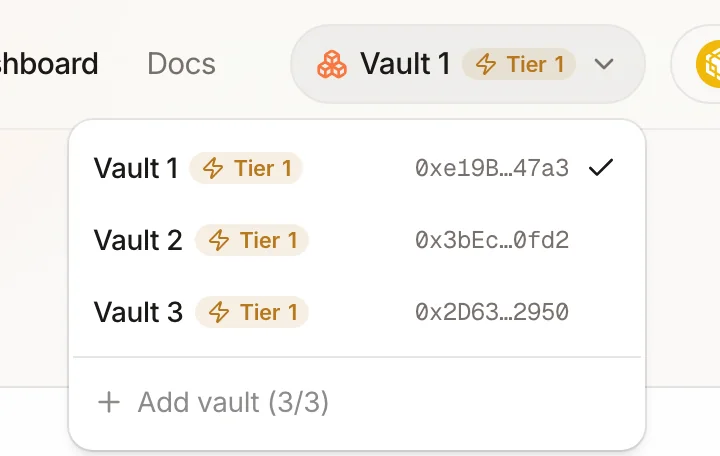
| Status | Meaning |
|---|---|
| Tier N | Lista counts the vault at holder Tier N: its boost is live. |
| Ramping | LISTA is allocated; the 7-day average is still climbing to Tier 1. |
| Inactive | No LISTA allocated: the treasury was short, you returned it, or it was reclaimed. |
- Your pick is remembered per wallet in this browser. On another device, after clearing site data, or in another tab opened earlier, the app may be on a different vault: check the header.
- With no pick yet, the app uses Vault 1. Adding a vault doesn’t switch to it.
What follows the vault you pick#
Switching re-points the whole app at once. Everything that reads or changes a position uses the selected vault; only a few Dashboard parts add up all your vaults.
| Page | Uses the selected vault | Covers all your vaults |
|---|---|---|
| Dashboard | My Vault, Active Boost and its tier prompts, Vault details, Request LISTA / Upgrade, My positions (Positions and Boost tabs), Claim history | The overview row; the Rewards card (one row per vault, plus All vaults) |
| Earn | Deposit and withdraw, the Deposited amount, the My Position chart, the Only my deposits filter | – |
| Borrow | Add / withdraw collateral, borrow, repay (incl. fixed-term), My position and Health, the My Position chart, the Only my borrows filter | – |
| Stake | Not affected: vlLTP belongs to your wallet and counts for every vault | – |
Dashboard#
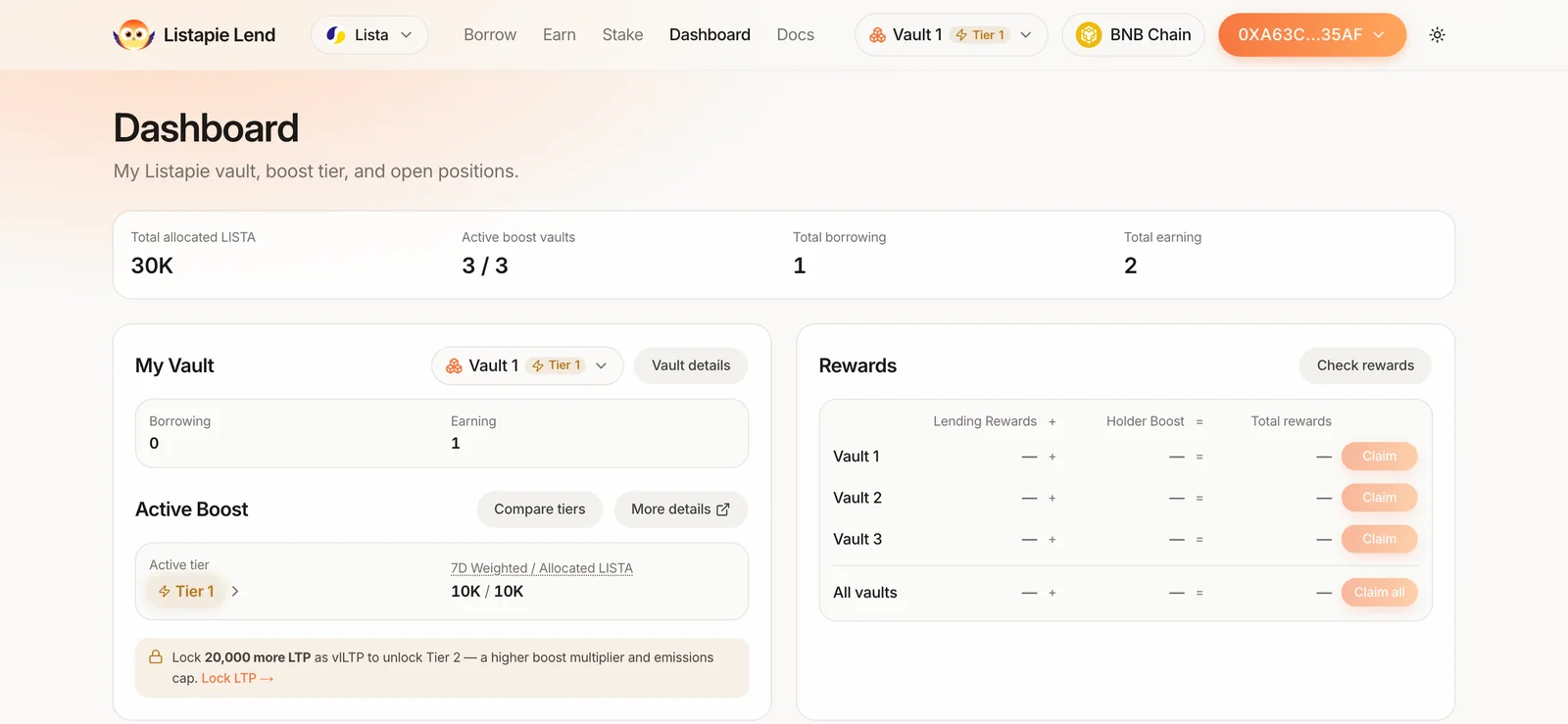
- Overview row (2+ vaults): Total allocated LISTA, Active boost vaults (e.g. 3 / 3), Total borrowing and Total earning across all your vaults.
- My Vault has its own vault menu next to Vault details. Use it to switch, or to add a vault, without leaving the card.
- Active Boost and the tier prompts are for the selected vault, with its own Tier-2 threshold: on Vault 2 you see “Lock … more LTP” against 40,000 vlLTP, not 20,000.
- My positions lists the selected vault’s Earn and borrow positions. Switch to see another vault’s.
- Rewards is the one card that always shows every vault: Claim on a vault’s row claims that vault, and Claim all on the All vaults row claims every vault in one transaction. Claim history below it is for the selected vault.
Earn#
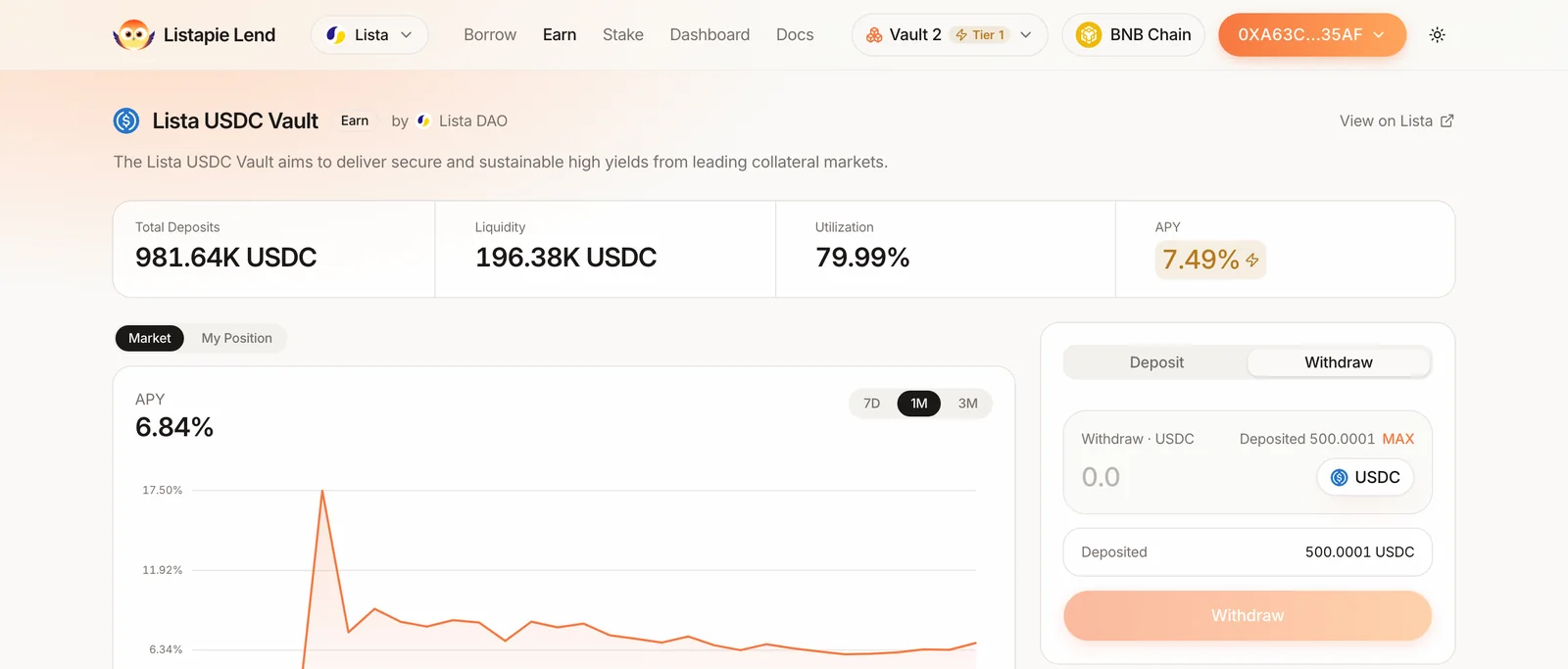
- Pick the vault in the header.
- Open an Earn vault: the Deposit button in the table, or the vault’s own page.
- Deposit or withdraw. The funds come from, and go back to, your wallet; the position is held by the selected vault.
- The table’s Deposits column is the Earn vault’s total, not yours. Turn on Only my deposits to list the Earn vaults the selected vault has deposits in.
- Depositing more into the same Earn vault from another of your vaults opens a separate position there; nothing is combined.
Borrow#
- Pick the vault in the header. To add to or repay an existing loan, pick the vault that holds it.
- Open the market and use Add / Borrow or Repay / Withdraw.
- Watch My position and Health at the top: they belong to the selected vault.


- Each vault has its own health factor and is liquidated on its own. Collateral in one vault never backs a loan in another; see Health factor & liquidation.
- Borrowed funds are sent to your wallet whichever vault borrows them, and repaying uses your wallet’s balance for the selected vault’s debt.
Stake#
Staking and locking happen in your wallet, not a vault, so the vault you pick doesn’t matter there. Your vlLTP counts for all your vaults at once (see Tier 2 below).
Tier 2 with several vaults#
Every vault gets Tier 1 with no vlLTP. Tier 2 is checked per vault, in vault order: a vault needs the Tier-2 threshold times its number, out of the vlLTP in your wallet.
| Vault | vlLTP in your wallet for Tier 2 | LISTA at Tier 2 |
|---|---|---|
| Vault 1 (main) | 20,000 | 50,000 |
| Vault 2 | 40,000 | 50,000 |
| Vault 3 | 60,000 | 50,000 |
- The same vlLTP counts for every vault; nothing is spent or split. 60,000 vlLTP qualifies all three vaults for Tier 2.
- Each vault upgrades with its own Request Tier 2 LISTA, made on the Dashboard while that vault is selected.
- The Add vault entry tells you what the next vault would need, e.g. “Vault 3 reaches Tier 2 once you hold 60,000 vlLTP in total.”
- If your vlLTP drops, the highest-numbered vaults lose Tier 2 first. Until its extra LISTA is pulled back, such a vault can’t claim; Request LISTA on it fixes that (see Allocation lifecycle).
- Before: 60,000 vlLTP
- Vaults 1–3 at Tier 2 · 150,000 LISTA
- After the unlock is claimed: 35,000
- Vault 1 keeps Tier 2 (needs 20,000)
- Vault 2 needs 40,000, vault 3 needs 60,000
- Both back to Tier 1 on their next rebalance
- Lent across your vaults
- 70,000 LISTA
Rewards across vaults#
- Check rewards signs one message that fetches the proofs for every vault you hold.
- Claim on a vault’s row claims that vault; Claim all on the All vaults row claims every vault in one transaction.
- Rewards from every vault go to your wallet, with the same per-source fees. See Claiming & fees.
Each vault stands alone#
- Positions, health factors and liquidations are per vault: collateral in Vault 1 doesn’t back a loan in Vault 2.
- The ring-fence, the inactivity clock and the opt-out from returning LISTA all apply per vault.
- There is no transfer between vaults. To move funds, withdraw from one vault to your wallet, then supply or deposit through another.
What you can’t do#
- Delete or merge vaults. A vault you no longer use can simply stay empty. You can return its LISTA (Vault details → Repay LISTA) so the protocol can lend it to someone else.
- Hand a vault to another wallet yourself. Only governance can reassign a vault, for support cases. If one of your extra vaults is moved away, your last vault takes over its number, so that vault’s Tier-2 threshold can only go down.